How to check and update my version of Samsung Kids
Important Note: The information on this page is for Hong Kong products only. Models, sequences or settings will vary depending on location and/or where the product had been purchased. To be redirected to your local support page please click here.
Some functions like notifications or games may not work correctly on older versions of the Samsung Kids app. Also, running the most recent version of Samsung Kids ensures that you stay informed about the latest news, changes and updates. Here’s how to check your version of Samsung Kids or update to a newer version.
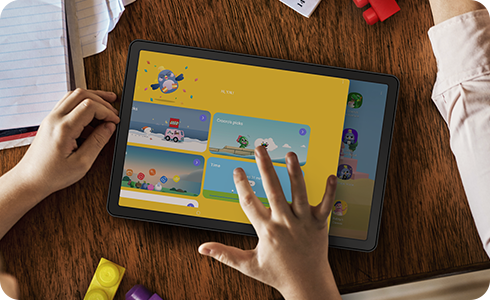
How to update Samsung Kids on your phone
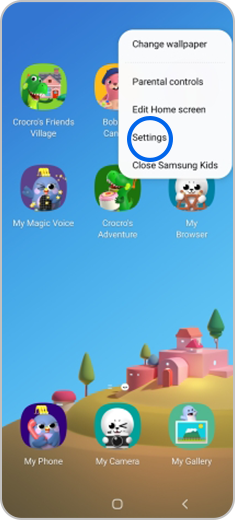
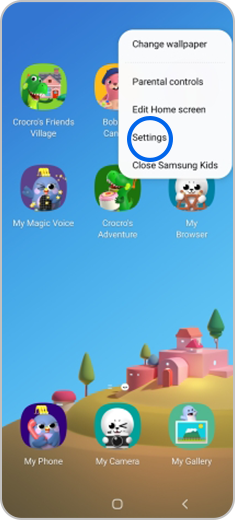
Step 1. Tap the More menu in the top right corner of the Home screen and go to “Settings”.
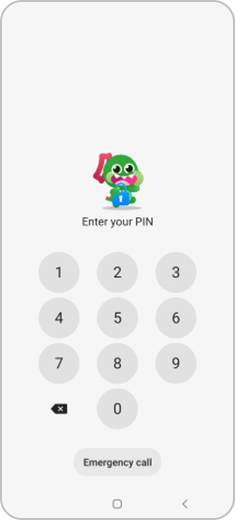
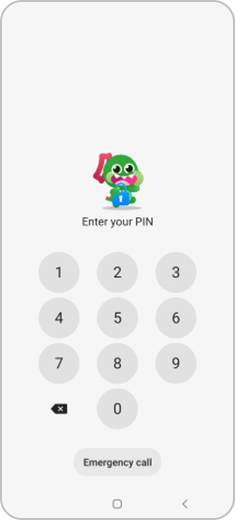
Step 2. Enter your PIN.
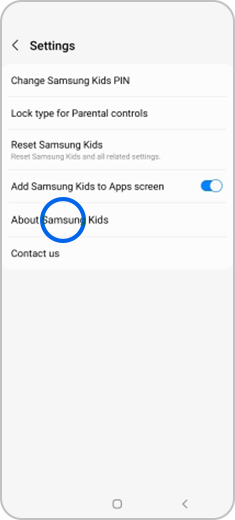
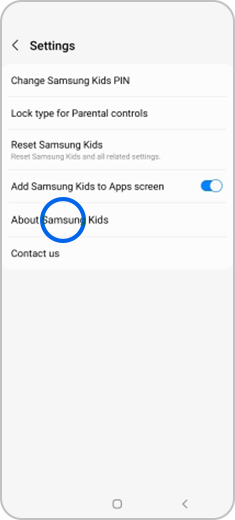
Step 3. Select “About Samsung Kids”.
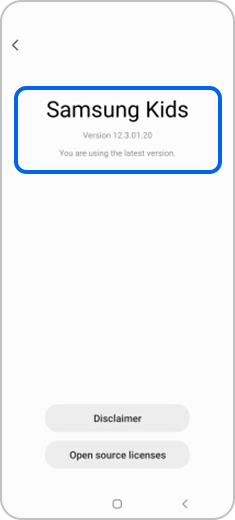
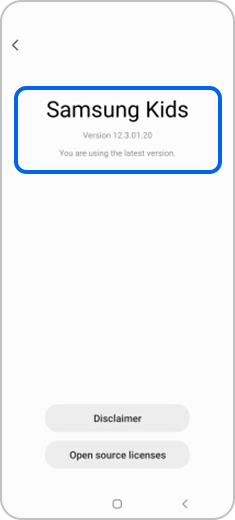
Step 4. Check the version information and tap the Update button to update.
If the above information does not match what your product is showing, you may check the User Manual for your product. If you are unable to solve the problem, please contact us for further assistance.
Thank you for your feedback!
Please answer all questions.
RC01_Static Content : This text is only displayed on the editor page