How to use Priority mode in the Game Booster app
Important Note: The information on this page is for Hong Kong products only. Models, sequences or settings will vary depending on location and/or where the product had been purchased. To be redirected to your local support page please click here.
“Priority mode” blocks incoming calls and all notifications, except alarms, to keep you totally focused on your gaming experience. It also accelerates game performance by closing other apps to dedicate more power to whichever gaming app you are currently using.

How to use Priority mode in the Game Booster app
To use “Priority mode” in the Game Booster app, open the Game Booster main screen and then select the “Priority mode” power icon button.
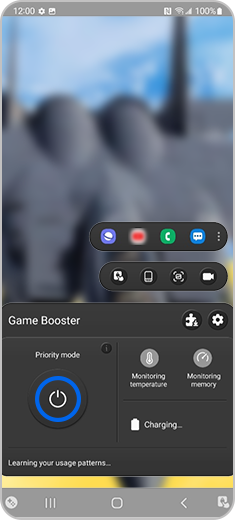
The Game Booster uses some of the “do not disturb” features which are made by Android™. It is Android's basic policy that the notification is displayed. If you are uncomfortable with this notification, we recommend turning off “Priority mode”.
Priority mode only works when the game is running. When the game is paused or stopped, priority mode is automatically paused or stops as well.
Some games may restart when Priority mode is enabled for the first time. However, you don't have to worry because the game won't restart again in the future.
If the above information does not match what your product is showing, you may check the User Manual for your product. If you are unable to solve the problem, please contact us for further assistance.
Thank you for your feedback!
Please answer all questions.
RC01_Static Content : This text is only displayed on the editor page