How to use Samsung Cloud
Important Note: The information on this page is for Hong Kong products only. Models, sequences or settings will vary depending on location and/or where the product had been purchased. To be redirected to your local support page please click here.
We know your device is full of important things you would never want to lose. From vacation photos to exciting concert videos to important business files, make sure you store everything safely. With Samsung Cloud’s easy file management service, you can easily back up and restore data on your mobile phone or tablet at any time.
Samsung Cloud is a service that supports the syncing of information linked to a user’s Samsung account, as well as backing up/restoring information stored in the user’s device.
How do I use Samsung Cloud?
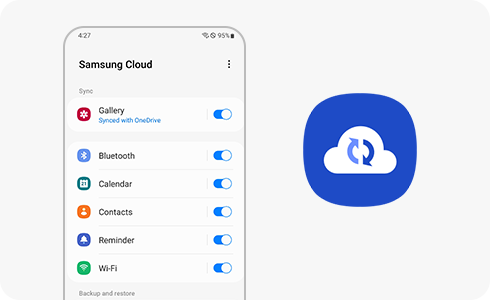
Samsung Cloud is already installed on your device. You can run its features from the Settings menu below:
- Sync:
Go to device settings, tap your Samsung account profile, select Samsung Cloud and then, a list of apps appears with a toggle button to switch syncing on/off.
- Backup/Restore:
- To back up data: Go to device settings, tap your Samsung account profile, select Samsung Cloud and tap “Back up data”. You can choose what you want to back up switching the toggle button of each data.
- To restore data: Go to device settings, tap your Samsung account profile, select “Samsung Cloud”, and select “Restore data”. You can choose the data you want to restore.
When running the installation wizard for the first time, you can restore the data backed up on your old device by logging in to your Samsung account.
Please note: The steps may vary depending on the device/app version.
If the above information does not match what your product is showing, you may check the User Manual for your product. If you are unable to solve the problem, please contact us for further assistance.
Thank you for your feedback!
Please answer all questions.
RC01_Static Content : This text is only displayed on the editor page