What kind of service is Sync?
Important Note: The information on this page is for Hong Kong products only. Models, sequences or settings will vary depending on location and/or where the product had been purchased. To be redirected to your local support page please click here.
Sync is one of the many services that you can find in Samsung Cloud. It allows you to use your Samsung account to perform functions like setting events on your calendar, programming reminders and storing information across multiple devices.
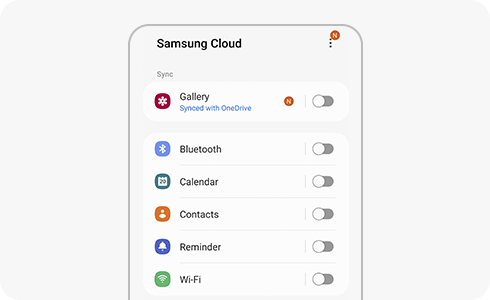
Sync matches the data on all devices that are synced to Samsung Cloud and uses the same Samsung account.
For example, when a synced note is edited or deleted on one device, the note will also be edited or deleted on every device logged into the same Samsung account.
How to sync your data
- Go to Settings > Samsung account (at the top of the screen) > Samsung Cloud.
Activate the items you want to sync in the Samsung Cloud app. If you activate the sync button for a specific app, it will automatically sync whenever you create new content or modify it. If you want to sync your data immediately, press “Sync Now”.
Please note: The route to access Samsung Cloud or the supported features may differ depending on the device, OS and country.
Items supported by Sync
- Calendar (Schedules saved on your Samsung account) - Events and tasks.
- Contacts (Contacts saved on your Samsung account) - Contacts, email addresses and business cards.
- Bluetooth - Paired Galaxy Home speakers and Galaxy buds.
- Reminder - Reminders for your tasks.
- Samsung Internet - Bookmarks, saved pages, open tabs and quick access shortcuts.
- Samsung Notes - Notes and other data.
- Samsung Pass - Sign-in information.
- Wi-Fi - Saved Wi-Fi networks.
- AR Emoji - Emojis and custom designed-items.
- Gallery – Photos and videos (Service integration with Microsoft OneDrive.
Please note: Depending on the country and mobile carrier, some countries or models may not support Samsung Cloud or may only support some items. For the exact items, check the Samsung Cloud app on your device.
If the above information does not match what your product is showing, you may check the User Manual for your product. If you are unable to solve the problem, please contact us for further assistance.
Thank you for your feedback!
Please answer all questions.
RC01_Static Content : This text is only displayed on the editor page