How to clear the app cache and data on your Galaxy phone
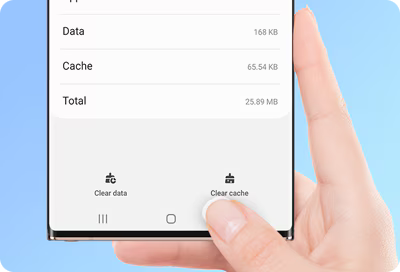
Apps can sometimes slow down or stop working properly, but that does´t mean you have to unistall them or reset your phone or tablet right away. In many cases, simply clearing the app´s cache or data is enough to fix the issue. This removes temporary files or bigs that may be causing problems. You can also use your device´s Device Care feature to limit background activity and extend your battery life.
Note: Screens and settings may vary by model and by country.
Clear app cache.
If a specific app you are using is slowing down, try clearing that app's cache first. You can delete all problematic files or bugs from the app. Follow the steps below to clear the cache of a single app.
Step 1. Launch the Settings app, and then select Apps.


Step 2. Select or search for the app you want to clear.
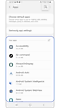

Step 3. Tap Storage. Here, you can see the Gmail app, for example.
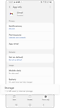

Step 4. Tap Clear cache.


Clear app data.
When clearing data, all of the selected application’s data will be deleted permanently. This includes all files, settings, accounts, databases, etc. Follow the steps below to delete data for a single app.
Step 1. Launch the Settings app, and then select Apps.
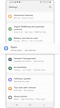

Step 2. Select or search for the app you want to clear.
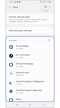

Step 3. Tap Storage. Here, you can see the Gmail app, for example.
Tap Clear data.


Step 4. Tap the OK button. This will completely wipe the app's files, settings, accounts, and databases.


Note: Device screenshots and menu may vary depending on the device model and software version.
Use the Device care to improve device and app performance.
Device care allows you to delete unnecessary data in the cache from your phone at once. These features will keep your phone from slowing down while improving its overall performance. Follow the steps below to clean cache data using device care.
Step 1. Launch the Settings app, and then select Battery and device care.
Step 2. Tap Optimize now. Device care automatically optimizes your phone and clears the app's cache.

The Device care's optimization feature improves device performance through the following actions.
- Closes apps running in the background.
- Manages abnormal battery usage.
- Scans for crashed apps and malware.
If you want to set the device to perform auto optimization when your device is not in use, tap More options > Automation > Auto optimize daily and tap the switch to activate it.

Thank you for your feedback!
Please answer all questions.
Contact Info
WhatsApp
![WhatsApp]()
![WhatsApp]()


Monday to Sunday
8:00 a.m. a 12:00 a.m.
LiveChat
![LiveChat]()
![LiveChat]()


Monday to Sunday
8:00 a.m. a 12:00 a.m.
Online
Call
Costa Rica: 00-800-1-726-7864
Ecuador: 1-800-72-6786
El Salvador: 800-0726-7864
Guatemala: 1-800-299-0033
Call
Honduras: 800-2791-9111
Jamaica: 1-800-726-7864
Nicaragua: 001-800-5077267
Panama: 800-0101
Call
Puerto Rico: 1-800-682-3180
Trinidad and Tobago: 1-800-726-7864
Venezuela: 0-800-100-5303
Dominican Republic: 1-800-751-2676