Manage workspaces in Samsung DeX mode

Samsung DeX has been redesigned, unifying its interface into the 'New' mode on Galaxy Tabs and Z TriFold. Standalone DeX mode is still accessible through the Quick Settings panel, and you can connect to displays using wireless or wired connections. For Galaxy devices running Android 16 with One UI 8.0, the experience is further enhanced, allowing you to switch to Standalone DeX mode directly from the Home screen and set up workspaces both in Standalone DeX mode and when connected to an external display.
A Samsung laptop showing the Samsung DeX interface with a Galaxy S25 in the foreground.

Manage workspaces in Samsung DeX mode

First, start DeX mode on your phone or tablet

Note
Standalone DeX is only available on the Galaxy Tab S4, Tab S6, Tab S7 series, Tab S8 series, Tab S9 series, Tab A9+, Tab S10 series, Tab S11 series, Tab A11+, and Z TriFold.
Whether you're using standalone DeX mode directly on your device's screen or connecting your tablet or phone to a display via wired or wireless methods, DeX adapts to your workflow seamlessly. Here's a closer look at how to access and utilize the different DeX modes:

Start the standalone DeX mode from the Quick panel

Access a desktop-like interface directly on your Galaxy Tablet or Z TriFold without needing an external display. 

  1. Just swipe down from the top right corner of the screen using two fingers to open the Quick settings panel. 
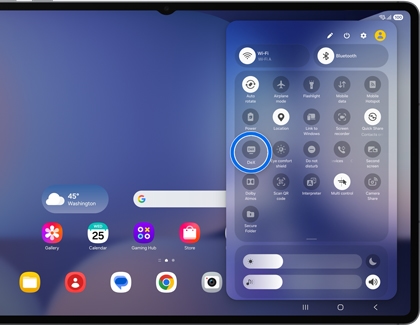
  2. Tap the DeX icon. If you see 'Wireless DeX' instead of 'DeX,' touch and hold the icon to open the DeX menu, then tap Quick panel button, and then tap Switch to desktop workspaceA Galaxy tablet showing the quick settings panel with the DeX icon highlighted by a blue circle.
  3. The DeX interface will load, enabling you to open apps in pop-up windows.

You can effortlessly operate Standalone DeX mode on the Home screen using your fingers, S Pen, or a keyboard and mouse, just as you would with your device's standard interface.

Note
Starting standalone DeX mode from the Home screen is only available on Galaxy Tabs and Z TriFold running Android 16 with One UI 8.0 or higher.

Start the standalone DeX mode from the Home screen

Transition smoothly to the updated standalone DeX mode on your tablet by launching apps in pop-up view.

  1. Launch any app on the Home screen, and then swipe down on the header bar (a horizontal line) in the top center of the app window to switch the app to pop-up view.
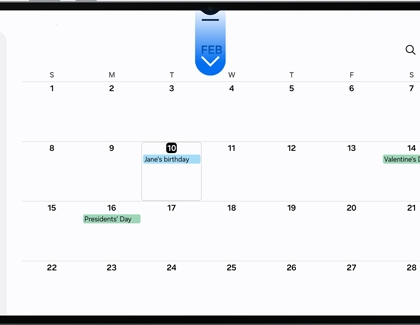
    A Galaxy tablet screen showing a calendar with a blue arrow pointing down from the top center.
  2. You can open multiple apps and move or resize pop-up windows.

You can seamlessly operate Standalone DeX mode like interacting with your device's standard screen, utilizing your fingers, S Pen, or keyboard and mouse.

Start wireless DeX mode with a display

Connect your phone or tablet wirelessly to a compatible TV or smart monitor for a cable-free experience. 
  1. Navigate to and open Settings on your phone or tablet, then tap Connected devices.
  2. Tap Samsung DeX, and then tap Connect wirelessly. If prompted, review and allow the permissions.
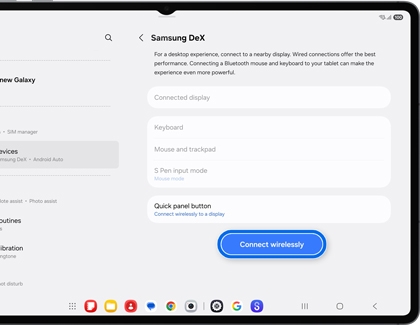
    A Galaxy tablet showing the Samsung DeX settings page with the Connect wirelessly button highlighted by a blue rounded box.
  3. Select your TV or smart monitor from the list, and then tap Start now.
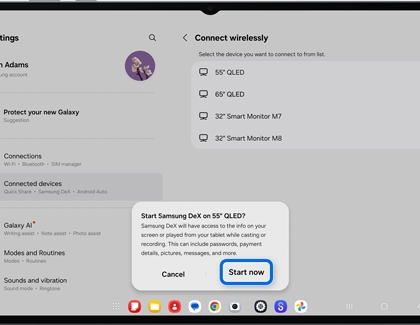
    A Galaxy tablet showing a pop up message to start Samsung DeX on a QLED TV with the Start now button highlighted by a blue rounded box.
  4. Your TV or smart monitor will prompt you to select Allow before connecting.
  5. Tap Start on your phone or tablet to allow the necessary permissions. If another Samsung DeX pop-up appears, tap OK.

You can navigate DeX using the Touchpad icon (it looks like a small box) in the lower corner of the screen, an S Pen, a USB or Bluetooth mouse and keyboard, or a Keyboard cover.

Note: Basic touchpad operations are supported, but gestures like two-finger pinching for zooming are not.

Start wired DeX mode with a display

Transform your phone or tablet into a desktop workspace by connecting it to a display via a DeX or HDMI cable. 
  1. Plug the USB-C end of the DeX cable or HDMI cable into your tablet.
  2. Then, connect the other end of the cable to the HDMI port on your TV or monitor.
  3. Unlock your phone or tablet if prompted. If it's your first time using DeX, a pop-up message will appear on the Home screen. Tap Start to enable Full Desktop mode.
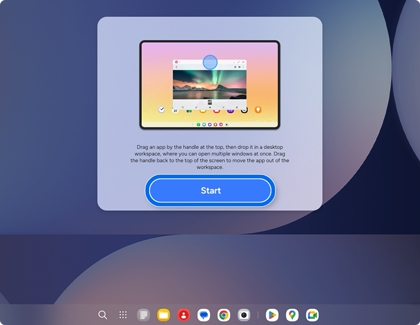
    A monitor screen showing a DeX mode tutorial popup with a blue Start button.
    Note: If the pop-up doesn't appear, swipe down with two fingers to open the Quick Settings panel, and then tap the DeX icon.
  4. If another Samsung DeX pop-up appears, tap OK

You can control DeX using the Touchpad icon (resembling a small box) located in the lower corner of the screen, an S Pen, a USB or Bluetooth mouse and keyboard, or a Keyboard cover.

Note: You can perform basic operations using the touchpad, but some gestures, such as pinching with two fingers to zoom in, won’t work with the Touchpad.

Read less

Next, set up a new desktop workspace in DeX mode

Note
Feature only available on Galaxy Tabs and Z TriFold running Android 16 with One UI 8.0 or higher.

Once you start DeX, you can then set up a new desktop workspace. Here's how:

  1. While in DeX mode, select the Recent icon at the bottom corner, and then select the Add desktop icon (it looks like a monitor with a plus sign) in the middle right.
    A Galaxy tablet screen in DeX mode with a blue circle highlighting the monitor plus icon on the right edge to create a new workspace.
    Note: You can create up to four workspaces. 
  2. While in the Recents view, swipe left or right to view your additional workspaces. 
Read less

Finally, exit DeX mode or close workspaces

Note
Standalone DeX is only available on the Galaxy Tab S4, Tab S6, Tab S7 series, Tab S8 series, Tab S9 series, Tab A9+, Tab S10 series, Tab S11 series, Tab A11+, and Z TriFold.
Exiting DeX mode is simple, no matter which method you're using.
Note
Exiting standalone DeX mode using the Recents icon is only available on Galaxy Tabs and Z TriFold running Android 16 with One UI 8.0 or higher.

Exit the standalone DeX mode 

  • Option 1: Swipe down from the top-right corner of the screen using two fingers to open the Quick settings panel, then select the Samsung DeX icon.
    A Galaxy tablet showing the quick settings panel with the DeX icon highlighted by a blue circle.
  • Option 2: On the Home screen, select the Recent icon, and then select the Home screen icon in the middle left corner.
    Recent screen of a Galaxy Tablet in DeX mode with a blue circle highlighting the home icon on the left edge.

Exit wireless DeX mode

  • Option 1: Swipe down from the top-right corner of the screen using two fingers to open the Quick settings panel, then select the Samsung DeX icon.
    A Galaxy tablet quick settings panel showing the Wireless DeX icon highlighted by a blue circle over a blurred home screen background.
  • Option 2: Swipe down from the top-right corner of the screen using two fingers to open the Quick settings panel, then select the Settings icon. Select Connected devices, select Samsung DeX, and then select Disconnect display.
    A Galaxy tablet showing the Samsung DeX settings screen with a blue rounded box highlighting the Disconnect display button at the bottom.

Exit wired DeX mode

  • Option 1: Swipe down from the top-right corner of the screen using two fingers to open the Quick settings panel, then select the Samsung DeX icon.
    A Galaxy tablet quick settings panel showing the Wired DeX icon highlighted by a blue circle.
  • Option 2: Physically disconnect the DeX cable or HDMI cable from your phone or tablet.
Note
Closing a desktop workspace in DeX mode is only available on Galaxy Tabs and Z TriFold running Android 16 with One UI 8.0 or higher.

Close a desktop workspace in DeX mode

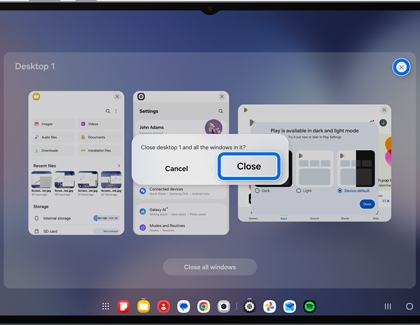
On the Home screen, select the Recent icon, then select the X in the top-right corner of the workspace, and then select Close.

A Galaxy tablet screen showing a pop up message to close desktop 1 and all windows with the Close button and icon highlighted in blue.

Repeat these steps for any additional workspaces you'd like to close.

Read less
Was this content helpful?
Table of contents
We're here for you

Contact Samsung Support

Contact us online through chat and get support from an expert on your computer, mobile device or tablet. Support is also available on your mobile device through the Samsung Members App.
auto-contact_us-pc-2x auto-contact_us-pc-2x